
How To Add Blog Posts To Pages In WordPress?- An Easy Guide
WordPress by default shows your most recent blog posts on the home page. But often WordPress users want to know how to add blog posts to pages in WordPress?
In this article, we’ll look at how to display your most recent, or selected blog posts on any page of your WordPress website.
We’ll look at:
- How to create & customize a separate blog page?
- How to show blog posts on a page using WordPress plugins?
- How to show blog posts on a page using the block editor?
That way you’ll be able to showcase your most relevant, and best content to your audience.
Let’s get started.
Mục Lục
Create a Separate Blog Page
Before we cover the other ways to embed posts on a page, let’s briefly look at the features in WordPress by default.
WordPress allows you to configure any page to be chosen as your blog page.
In this example, you can create a different blog page and add it to your navigation menu in three simple steps:
Step 1: Create two pages (Blog and Home)
In the first step, you need to create a page for your blog and one for your homepage. You can choose not to add any content to these pages.
To create the pages: Navigate to Pages > Add New in WordPress. Create two pages that you would like to use as your homepage and blog page.

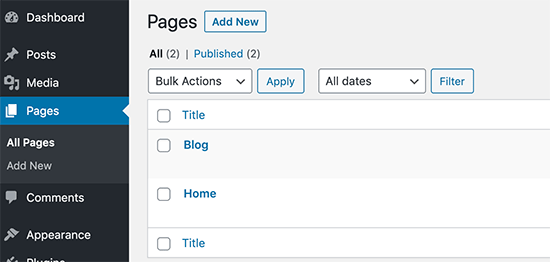
You can name one page Home and another one Blog for simplicity.
Step 2: Set Up Your Home & Posts page
Navigate to Settings > Reading in the WordPress admin area.
Under the ‘Your homepage displays’ section, click on the ‘A static page’ option. After that, you can select the home and blog pages you created earlier.

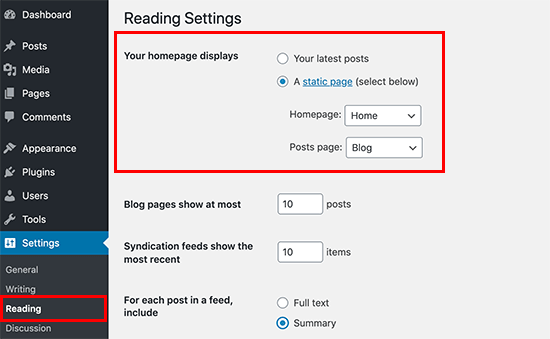
Step 3: Add The Home & Blog Pages To The Menu
Visit the Appearance > Menu page and add the Blog page you created earlier to your website’s navigation menu.

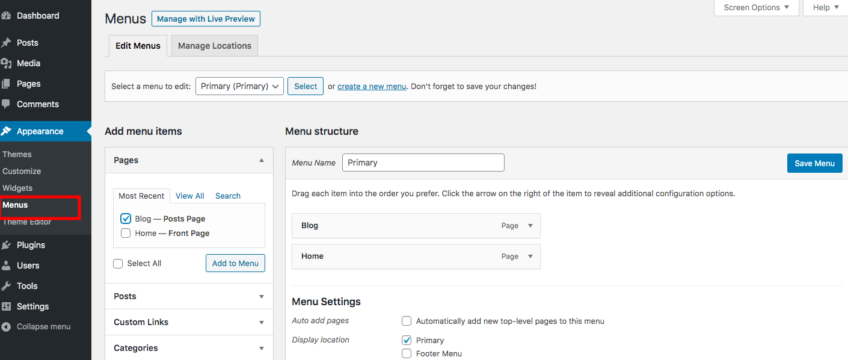
Now check the front end of your site to view the changes.

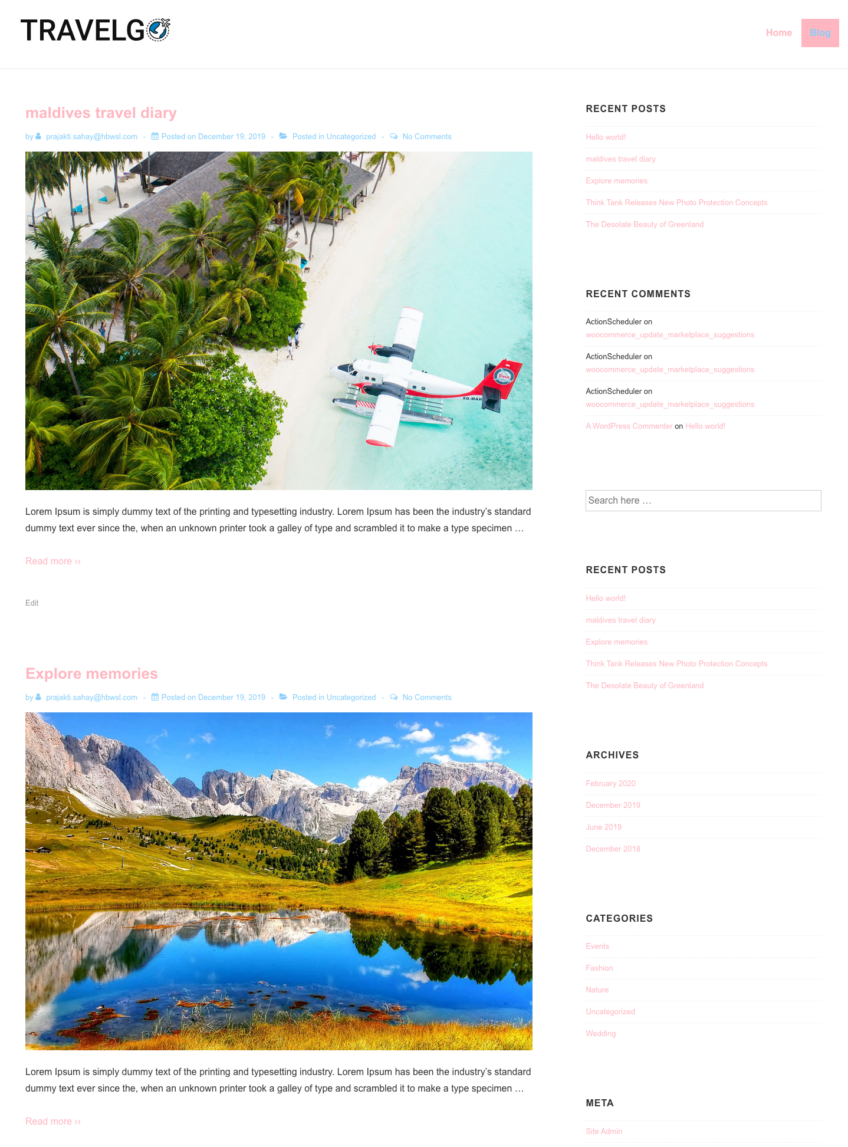
Customize Your Blog Page Design
Top WordPress themes today, come with customizer options to change your blog’s design.
The Responsive WordPress theme by CyberChimps is one such theme.
However, most themes are not as easy to edit. And that’s where page builders can help.
Page builders have the following advantages:
- Page builders are plugins that work on top of any theme. And allow you to build and customize your layout with a simple drag-and-drop interface.
- Page builders allow you to create a professional and unique-looking site without coding.
- Page builders can help you overcome the limitations of both plugins such as WP Show Posts and the WordPress block editor.
These are the three of the most popular Page Builders that you try and choose the one that fits you best:
Here’s a quick video that shows you how to design a blog page using the Elementor page builder.
Source: Elementor
Third-party add-ons, like Ultimate Elements for Elementor, give you even more options to add blog posts on a page.
How to add blog posts on a page using WordPress plugins
WordPress also has plugins that help you show your blog articles on a page.
In this example, we have used the WP Show Posts Plugin.
First off, install and activate “WP Show Posts” from the WordPress repository or search from the WordPress Dashboard.

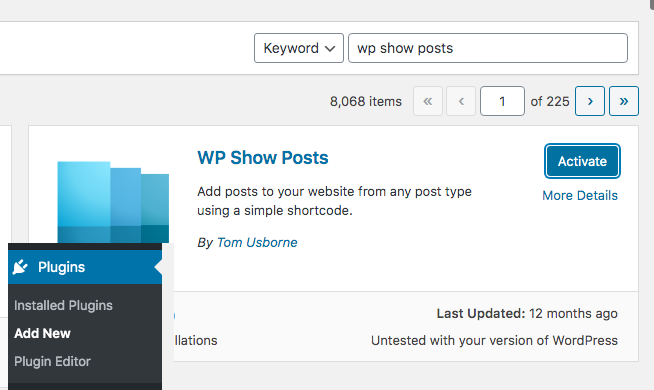
Once the plugin is activated, you will see a menu on the left named “WP Show Posts”.
Click on Add New under it to create a list of posts that you want to display on a page.


This plugin comes with several options available to make the list of posts look pretty on the frontend.
Choose the blog articles you want to show. You can choose to filter blog articles by their post type and taxonomy. You can also configure the number of posts you want to show, and pagination if any.
Once you’re happy, Publish the list.
Now copy the shortcode created and paste it into the page where you want to show your posts.
Let’s have a look at the frontend.

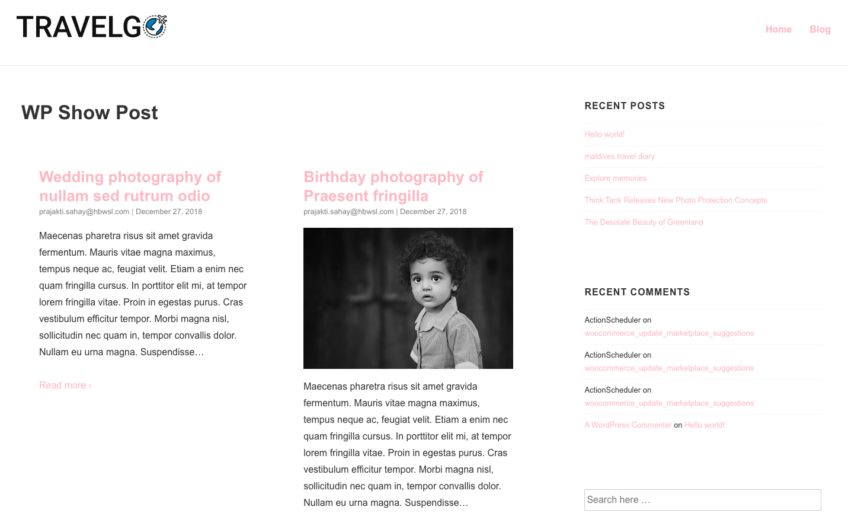
How to add blog posts on a page using the WordPress block editor
The WordPress block editor comes with a block to display the latest blog posts.
WordPress is continuously improving this feature to give you more power to choose the layout of the posts. This reusable block enables you to include the posts grid anywhere on your website (including in a section within your homepage).
To use this block:
Go to the page where you want to display the posts and click on the + button to add a block.
Next, search for “Latest Posts”. You can edit the view type, the number of posts and categories to display.

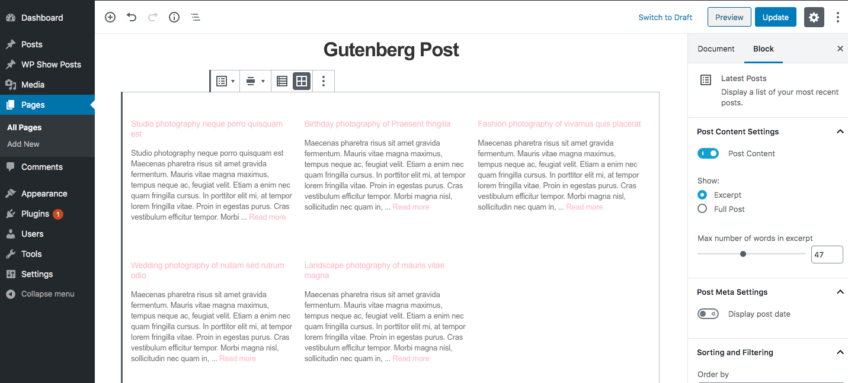
Once you are done, hit Publish and view page.


Conclusion
We hope this article was helpful to you to understand how to add blog posts to pages in WordPress. And you learned a few different ways to achieve that.
If you have any questions or suggestions, please share them in the comments below.

















![Toni Kroos là ai? [ sự thật về tiểu sử đầy đủ Toni Kroos ]](https://evbn.org/wp-content/uploads/New-Project-6635-1671934592.jpg)


