
Skype for Business Upgrade to Teams – A Complete Guide
Built exclusively to integrate with the Microsoft 365 ecosystem, Teams is very likely to surpass and replace Skype for Business in terms of adoption and functionality. The Skype for Business upgrade to Teams may not entirely mean a 1-to-1 transition, but ultimately, it’s an upgrade mode that delivers a lot of value.
Mục Lục
Microsoft Teams vs Skype for Business Online
Extending the capabilities of SFB, the later service from Microsoft brings together chat, meetings, calling, collaboration, app integration, and file storage into a single interface. This new central hub and collaboration tool for teamwork can help streamline the way users get things done, improving customer satisfaction and accelerating business outcomes. Microsoft is constantly expanding the capabilities, enabling Teams users to communicate and collaborate internally or with external party in new ways, break down organizational and geographical barriers, and drive efficiency in process and decision making.
As we all know, both the services under consideration would do the very basic things quite smoothly i.e., Calling, Chatting or Meetings etc. But one certainly would be curious to know what are the extras that come with the new service of Microsoft which make it a better and refined mode to upgrade to for thier company. So, let’s have a very detailed look for the features difference between the two.
FEATURE
CAPABILITY
MICROSOFT TEAMS
SKYPE FOR BUSINESS ONLINE
CHAT
Escalate 1:1 Chat/Call to Multiparty
Available
Available
Read receipts in private chat
Available
N/A
Skype (Consumer): chat and VoIP call
Available
Available
Skype (Consumer): Status Presence
N/A
Available
MEETING
Broadcast Meetings
Live Events
Available
Broadcast Meetings live caption, translation, transcription
English, German, Simplified Chinese only
N/A
Content Cameras and Intelligent Capture
Available
N/A
Desktop Sharing in a Meeting
Available
Available
Federated Meetings
Available
Available
Meeting Mobile Companion
Meeting Live Captions
Available
N/A
PowerPoint attachments in invite (via mail)
immediately available in meeting
Available
N/A
Proximity based meeting join
Available
N/A
Share system audio
Available
N/A
Smartphone Screen Sharing
Available
N/A
Unmute other partIcipants
N/A
Available
Video Background Blur
Available
N/A
Video Customized Call Backgrounds
Available
N/A
Web App Meeting Access (Plugin-less)
Available
N/A
CALL
Busy on Busy
Available
N/A
BToE
N/A
Available
Call Blocking
Available
Available
Call Delegation
Available
Available
Call Park Service
Available
N/A
Custom IP-Phone Policy
Available
N/A
Group Call Pickup (Teams definition)
Available
N/A
Message Translation
Available
N/A
Voicemail embedded configuration controls
Available
N/A
SECURE COLLABORATION
Channel Moderation
Available
N/A
Data Loss Prevention (DLP)
Available
N/A
Device Management Portal
Available
N/A
Ethical Wall (Information Barriers)
Available
N/A
Guest Access (see also Anonymous Access)
Available
N/A
Private Channels
Available
N/A
Priority notifications
Available
N/A
Shared Line Appearance
Available
N/A
Status Message expiration
Available
N/A
Supervision policies
Available
N/A
Teams for File Sharing and Collaboration
Available
N/A
The features comparison information is primarily collected from Luca’s Skype for Business and Teams Features Comparison Table shared over TechNet gallery.
Skype for Business Upgrade to Teams
A flourished technical environment, sustained user adoption, and the understanding of your business goals all begin with proper planning. A solid plan gives you a framework for your upgrade and makes sure that all stakeholders are working simultaneously.
Once you’re ready to make your move, Microsoft has two upgrade paths that can help with your migration:
1. Microsoft Teams Upgrade Basic (Cutover)
2. Microsoft teams Upgrade Pro (Co-Existence)
1.
Upgrade Basic
(Cutover)
The Upgrade Basic mode is designed for smaller organizations or those people that are using SFB as their primary chat tool and meetings only. It’s a quick action plan for implementing your Skype for Business upgrade to Teams that includes recommended activities, and relevant resources. This upgrade is designed keeping in mind that you’ll be shifting your entire organization to the new service at once. The upgrade process typically takes around 30 to 45 days.
The following ten steps furnish everything you need for a successful upgrade to Teams. They’re designed to be completed in the estimated 30 to 45 days, but can be adjusted based on your organization’s upgrade schedule.
-
n for the move
You can learn in detail about all these steps in this article by Microsoft After your users are upgraded to Teams Only mode):
-
SFB
client will be disabled, and all chat and calls go to Teams. This will not uninstall the client on their desktops.
-
SFB
meetings that were scheduled before the upgrade will work as designed, but all the new meetings will be scheduled in Teams. The Skype for Business plugin will no longer be available in Outlook.
2.
Upgrade Pro
(Co-Existence)
The Upgrade Pro (coexistence mode for journey to Teams) is designed for organizations larger in size, or those that acquire a more complex deployment of SFB and not only use this tool for some features. It is comparatively a more prolonged upgrade lifecycle that would be completed in phases and offers extensive guidance and planning resources. This phased approach typically takes around 120 to 150 days. You can learn more about this mode in a very detailed article to Upgrade from Skype for Business to Microsoft Teams After your users are upgraded to Teams Only mode:
-
SFB
client will be disabled, and all chat
communications
and phone call experience
go to Teams. This will not uninstall the client on their desktops.
How to choose Your Skype for Business upgrade to Teams Strategy
There is a question to answer that which Skype for Business upgrade to Teams path would be good for you. To have an answer to this question please have a look at the below comparison of both approaches which would help you decide in the end to go with which option.
Upgrade Basic (Cutover)
Upgrade Pro (Co-Existence)
Discovery of Environment isn’t that much critical (Chat and Meetings only in use)
Detailed Discovery of Environment
Precise Planning Included
Thorough Planning Included
Very few numbers of IT Admins to Train
Training of a huge IT staff
Very few numbers of Users to use Teams
Training of a huge User base
Small Organization
Large Organization
Need to switch in one go
Would be done in Stages
Microsoft offers several options for running Skype for Business Online and Teams together which is also known as Teams Skype for Business Interoperability. These coexistence modules allow users to familiarize themselves with Teams while helping accelerate your upgrade to Teams ONLY. Here’s how you can use Teams and Skype together in the meanwhile.
Microsoft Teams Licensing
To begin discussing this particular portion, we need to understand the current standings of Skype for Business Online Plans that how Skype for Business Online retire announcement has affected them and what are the after effects.
Skype for Business Online Plan 1 retired
The Skype for Business Online Plan 1 has retired. However, if you have a current subscription to Skype for Business Online Plan 1, this change won’t affect you right away. As a global Office 365 admin, you’ll receive email updates and see posts in the message center (part of the Microsoft 365 admin center) with information on when you need to take action. In the meantime, you can continue to use your existing Skype for Business Online Plan 1 licenses.
When you are ready to move to a new plan — either now or during renewal — you’ll have the option to switch to another Office 365 plan of your choosing.
You can maintain the same functionality you had with Skype for Business Online Plan 1 while taking advantage of new features and functionality from Office 365. Many plan options available include all the features that came with Skype for Business Online Plan 1, as well as IM and presence, peer-to-peer audio and video over IP, and the ability to join meetings as an authenticated user.
Skype for Business Online Plan 2 retired from sale
Skype for Business Online Plan 2 retired from sale on July 1, 2019. This means that you will no longer be able to acquire Skype for Business Online Plan 2 for instant messaging, presence, meetings, and peer-to-peer voice and video. These features will continue to be supported in all plans that include Teams, including Office 365 suites.
When your plan expires at the end of your current term, in order to have continued access to these features, you’ll have to switch to a different plan. We recommend that you evaluate the Microsoft 365 Business Basic, Business Premium, or any other Office suites for users that currently have Skype for Business Online Plan 2 assigned.
How to purchase Microsoft Teams License?
Microsoft Teams may be used without no cost but with a very limited functionality. The free version of it comes with certain limitations of meeting time span, very small cloud storage etc.
Apart from the Free version, it comes along with any of the Office 365 or Microsoft 365 Plans and is not available as a standalone license option.
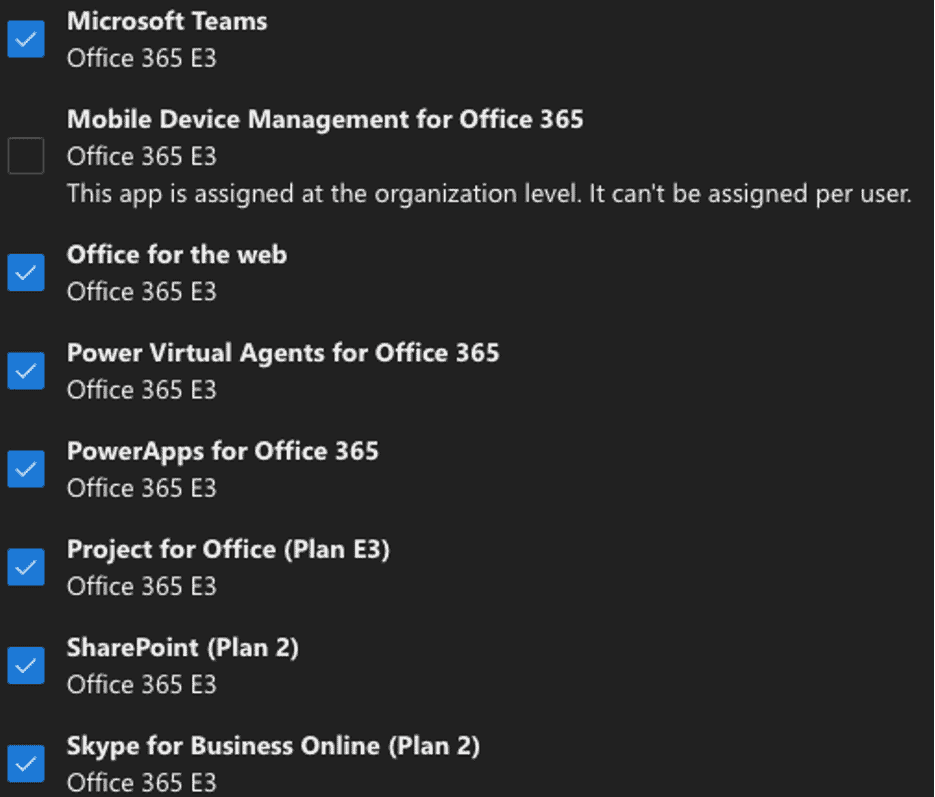
To acquire Teams Licenses, you’d primarily have two options to go with. Microsoft 365 Business Plans or Microsoft 365/Office 365 Enterprise Plans. We do get both the Licenses i.e., Skype for Business Online Plan 2 and Microsoft Teams License within each package as shown in screenshot below for Office 365 E3.













![Toni Kroos là ai? [ sự thật về tiểu sử đầy đủ Toni Kroos ]](https://evbn.org/wp-content/uploads/New-Project-6635-1671934592.jpg)


