
Setup A Minimal Blog (Jekyll + GitHub Pages)
Mục Lục
Setup A Minimal Blog (Jekyll + GitHub Pages)
This post guides you to setup a blog, write a post with markdown, and publish it online. We use Jekyll blogging tool and deploy on GitHub Pages.
Steps
Step 1: Create a github repo with name <your_github_username>.github.io.
Step 2: Add _config.yml file as below.
title: <YOUR_BLOG_NAME>
description: >-
  <YOUR_BLOG_DESCRIPTION>
Step 3: Add index.html file as below.
---
layout: default
---
PUT_SOME_WELCOME_MESSAGE_HERE
<ul>
  {% for post in site.posts %}
    <li>
      <a href="{{ post.url }}">{{ post.title }}</a>
    </li>
  {% endfor %}
</ul>
Step 4: Add a post under _posts folder with a name in this format: 2020-04-05-MY-POST-NAME.md.
---
layout: post
title: "MY POST TITLE"
---
I can write blog here... with markdown!
Step 5: Push the changes to GitHub.
# You might want to `git init` and `git remote add origin` first.
$ git add .
$ git commit -m "Start my blogging life."
$ git push
Done. Now, your minimal blog is ready at http://<your_github_username>.github.io. It should be similar to the following screenshot.
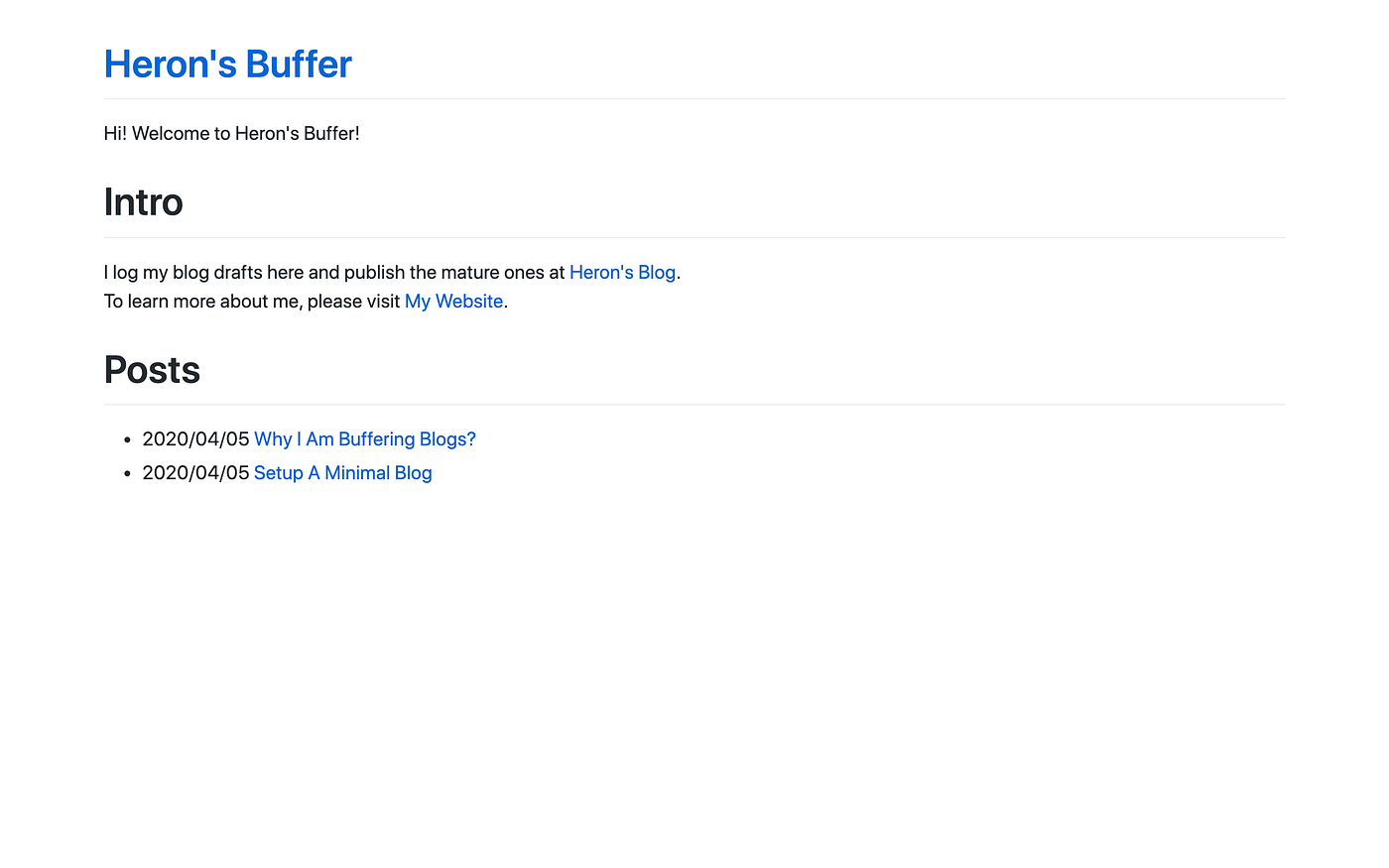 Your blog will be similar to this.
Next, I describe some additional things you might want to do. They are optional.
Additional: Run Locally
If you want to see the changes without affecting the one deployed online, you can run the blog locally first. To keep you away from a series of installation issues, I provide the following solution with docker.
Step 1: Install and run Docker on your machine.
Step 2: Add Gemfile as below:
source "https://rubygems.org"
gem "github-pages", group: :jekyll_plugins
Step 3: Run the following command to start your blog locally.
$ export JEKYLL_VERSION=3.8
docker run --rm -p 4000:4000 \
  --volume="$PWD:/srv/jekyll" \
  -it jekyll/jekyll:$JEKYLL_VERSION \
  jekyll serve
Step 4: Visit your blog at http://0.0.0.0:4000.
Note the you don’t have to re-run the command in Step 3 if you add or modify a blog post. But, you need to re-run if you modify the _config.xml file.
Additional: Display Date of Posts
If you want to display the date of the posts on your home page. In index.html file, changehtml <a href="{{ post.url }}">{{ post.title }}</a> tohtml {{ post.date | date: "%Y/%m/%d"}} <a href="{{ post.url }}">{{ post.title }}</a> .
Additional: Change Theme
There are several themes you can pick from. Visit the GitHub page of the theme, they provide a name for you to add to _config.yml. For example, to use the Minimal theme, simply add the following to _config.yml:
theme: jekyll-theme-minimal
My Words
Many tutorials I found are over-engineered. For example, Jekyll’s official document teaches you Gems tool before you start to write a blog. Another example, if you follow the installation steps most website provides, you may end up dealing with system dependency bugs like this and this. I’ve been looking for a tutorial on that provides the minimum steps needed for setting up a markdown blog but couldn’t find one. So, I wrote one.
Please comment if anything doesn’t work for you. We can figure it out together. I deployed mine mini blog at http://buffer.heron.me/ (2022 June Update: As I no longer need this blog, I’ve unpublished it and archived it at https://github.com/heronyang/heronyang-buffer.github.io).

















![Toni Kroos là ai? [ sự thật về tiểu sử đầy đủ Toni Kroos ]](https://evbn.org/wp-content/uploads/New-Project-6635-1671934592.jpg)


