
[SOLVED] Windows 10 wireless adapter missing – Driver Easy
Your wireless network adapter is missing on your Windows 10 PC? Don’t worry! Although it is frustrating, you’re not the only one to experience this issue. Many Windows 10 users have recently reported the very same issue. More importantly, you should be able to fix it pretty easily…
Mục Lục
Try these fixes
Here’s a list of fixes that have fixed this issue for other Windows 10 users. You don’t have to try them all. Just work your way through the list until you find the one that does the trick for you.
Fix 1: Show the hidden devices in Device Manager
Your wireless network adapter may be hidden in Device Manager. If you’re not sure, follow the instruction below to show the hidden devices in Device Manager:
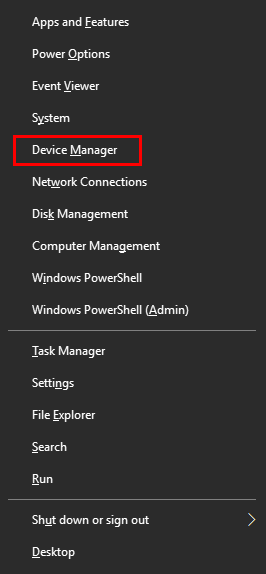
- On your keyboard, press the Windows logo key and X at the same time. Then select Device Manager. You’ll be prompted for permission. Click Yes to open Device Manager.
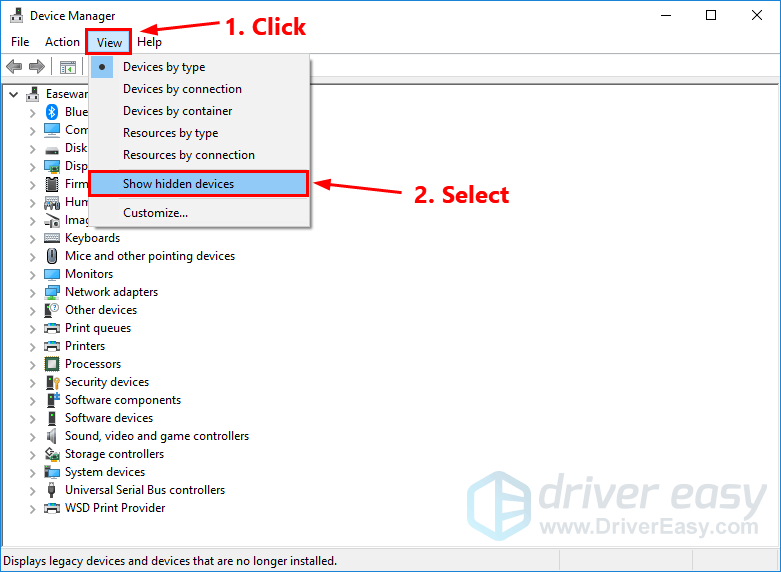
- In Device Manager, click View and select Show hidden devices.
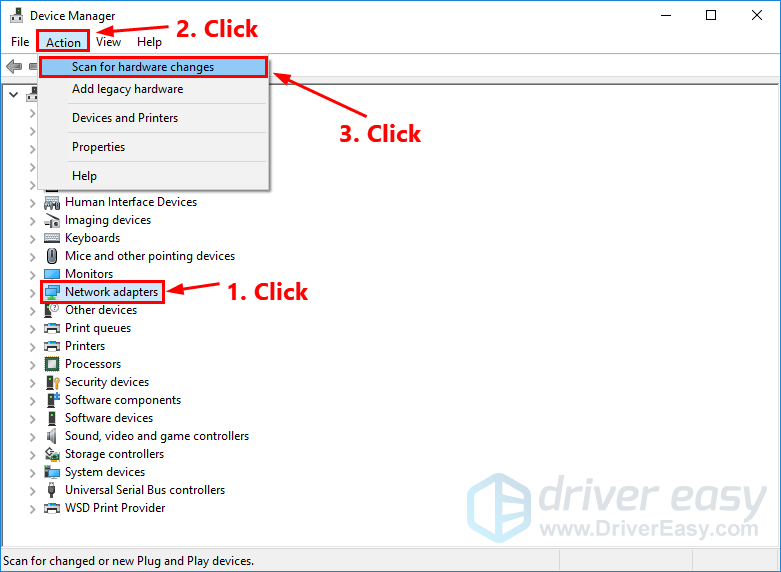
- Click Network adapters to select it. Click Action and click Scan for hardware changes.
- Double-click Network adapters to expand the list. See if your wireless network adapter (usually the adapter whose name contains the word “wireless”) appears among the list.
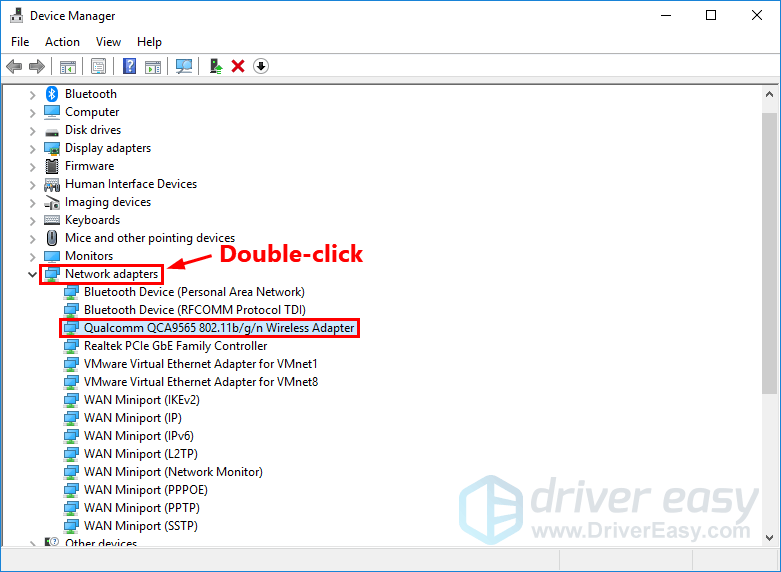
If your adapter appears shows up on the list, double-click on it to open its properties window. See if the adapter is working properly.
If your wireless network adapter doesn’t appear among the list, or if the adapter is not working as expected, don’t worry! Try the next fix, below.
Fix 2: Run the network troubleshooter
The built-in network troubleshooter in Windows 10 is a useful tool to resolve network issues. You can follow the instruction below to run the network troubleshooter:
-
On your keyboard, press
the Windows logo key
and type
network troubleshooter
. Then select
Identify and repair network problems
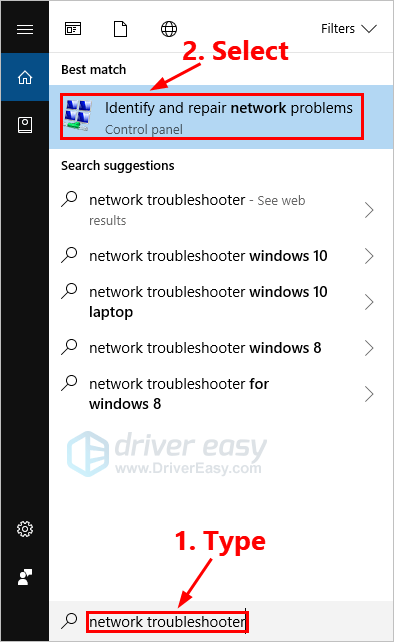
in the list of search results to run the network troubleshooter.
- The network troubleshooter will automatically detect the network problems on your PC. You just need to follow the steps in the network troubleshooter and see if this issue can get fixed.
See if your wireless network adapter appears. If not, try the next fix, below.
Fix 3: Update the driver for your wireless network adapter
A missing or corrupted driver may be the root of this issue. Try updating the driver for your wireless network adapter to see if you can resolve it.
There are two ways to update the driver for your wireless network adapter: manually and automatically.
Manually update the driver for your wireless network adapter – You can update it manually by going to the manufacturer’s website, and searching for the latest driver for your wireless network adapter.
Be sure to choose the driver that’s compatible with your exact wireless network adapter model and your version of Windows.
Or
Update the driver for your wireless network adapter automatically – If you don’t have the time, patience or computer skills to update your network driver manually, you can, instead, do it automatically with Driver Easy. You don’t need to know exactly what system your computer is running, you don’t need to risk downloading and installing the wrong driver, and you don’t need to worry about making a mistake when installing. Driver Easy handles it all.
All the drivers in Driver Easy come straight from the manufacturer. They‘re all certified safe and secure.
- Download and install Driver Easy.
-
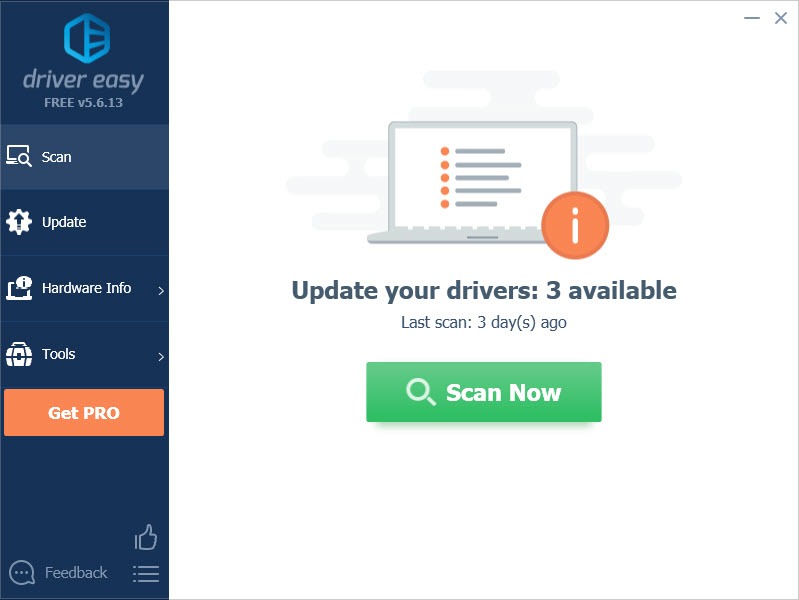
Run Driver Easy and click the
Scan Now
button. Driver Easy will then scan your computer and detect any problem drivers.
-
Click
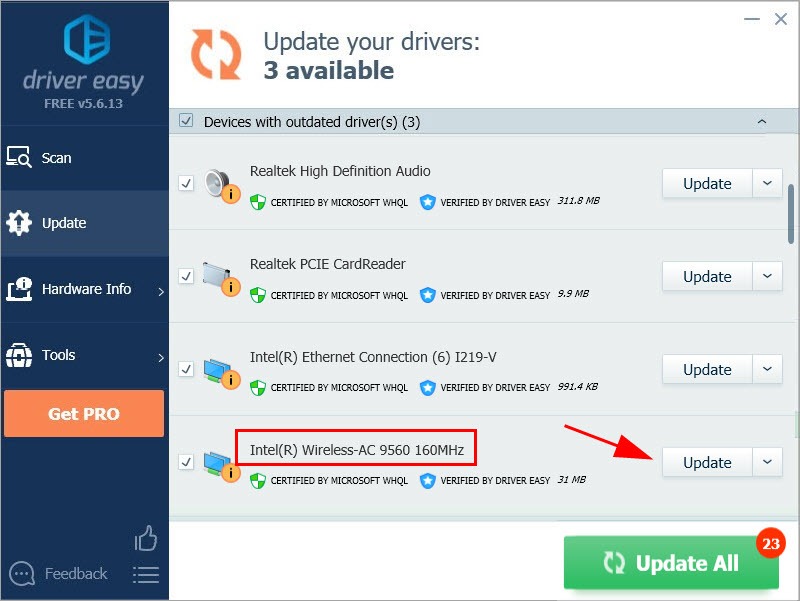
UpdateUpdate All to automatically download and install the correct version of all the drivers that are missing or out of date on your system (This requires the Pro version – you’ll be prompted to upgrade when you click
next to your wireless network adapter to automatically download the correct version of its driver, then you can install it manually. Or clickto automatically download and install the correct version of all the drivers that are missing or out of date on your system (This requires the– you’ll be prompted to upgrade when you click
Update All.
You get full support and a 30-day money back guarantee
).
Driver Easy’s support team at [email protected].
The Pro version of Driver Easy comes with full technical support. If you need assistance, please contactat
Fix 4: Reset the Winsock settings
Winsock is a programming interface and supporting program in Windows operating system. It defines how Windows network software should access network services. If its data went wrong, this issue may occur.
In this case, resetting Winsock data may resolve this issue, because resetting Winsock data is helpful for dealing with some network connection issues. Here is how to do it:
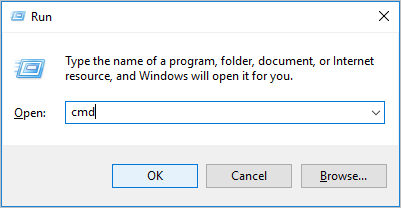
- On your keyboard, press
the Windows Logo Key
and
R
at the same time to open the Run dialog. Type
cmd
and press
Ctrl,
Shift
and
Enter
at the same time to
run
Command Prompt
as administrator. You will be prompted for permission. Click
Yes
to run Command Prompt.
-
In the Command Prompt, type
netsh winsock reset
and press
Enter

- Restart
your PC to complete the reset.
See if your wireless network adapter appears in Device Managers.
Fix 5: Replace your network interface controller card
If your wireless network adapter doesn’t appear in Device Manager after you tried all the fixes above, it’s time to consult the manufacturer of your PC for further support, since the worst case of this issue could be the problem of your NIC (network interface controller) card.
Hopefully one of the fixes above resolved this issue for you. Feel free to leave us a comment if you have any questions or suggestion.

















![Toni Kroos là ai? [ sự thật về tiểu sử đầy đủ Toni Kroos ]](https://evbn.org/wp-content/uploads/New-Project-6635-1671934592.jpg)


