
Creating a Ghost Blog with Free Webhosting using Github Pages
When I began my search to find the best blog/CMS that I could host at home (or in my dorm room) on my server, I landed on Ghost pretty quickly with its slick UI and broad feature-set including an admin panel, app integrations, and native Docker support.
My problems arose when it came to hosting. Although I can host it on my server I currently cannot port-forward traffic to my blog, and it also introduces a pretty significant security risk.
Bring in Github pages. Github pages is a great way to host websites completely for free with the one cavitate being that they have to be completely static. As Ghost doesn’t natively support this to my knowledge, this is where the guide begins.
Requirements
- Server/Laptop/PC you have to host the server on for local editing. The final site will be on GitHub pages so this machine doesn’t have to be running 24/7.
- Free Github account
- Basic Linux command line knowledge
- Patience
Setting up Linux environment
This guide should work natively on Linux and macOS (untested) and if you only have a Windows machine, it should work using WSL2.
First, we need to install Docker and some other packages. Going forward, I will be listing commands that would be used on Debian/Ubuntu-based systems as that is what I personally used, but they should be similar for other platforms. To install Docker, we can run these commands below.
sudo apt-get install ca-certificates curl gnupg lsb-release nano git curlDownload apt packages
curl -fsSL https://download.docker.com/linux/ubuntu/gpg | sudo gpg --dearmor -o /usr/share/keyrings/docker-archive-keyring.gpgAdd Docker GPG key
echo \
  "deb [arch=$(dpkg --print-architecture) signed-by=/usr/share/keyrings/docker-archive-keyring.gpg] https://download.docker.com/linux/ubuntu \
  $(lsb_release -cs) stable" | sudo tee /etc/apt/sources.list.d/docker.list > /dev/null
Set up stable repository
sudo apt-get update
sudo apt-get install docker-ce docker-ce-cli docker-compose containerd.io
Next, we want to install all of the packages needed for the static site generator that we will be running outside of the Docker container on bare metal.
sudo apt-get install python3 python3-pip wgetDownload Python 3 and pip
Setting up the Ghost Docker container
The method I’m going to be using to set up Ghost with Docker is through docker-compose. Firstly we need to create a docker-compose.yml file.
nano docker-compose.yamlIn nano paste and edit the docker-compose install parameters below.
version: '3.1'

services:

  ghost:
    image: ghost:4.36.3
    restart: always
    ports:
      - 2368:2368
    environment:
      # see https://ghost.org/docs/config/#configuration-options
      database__client: mysql
      database__connection__host: db
      database__connection__user: root
      database__connection__password: EXAMPLE
      database__connection__database: ghost
      url: http://serverip:2368
      #NODE_ENV: development

  db:
    image: mysql:5.7
    restart: always
    environment:
      MYSQL_ROOT_PASSWORD: EXAMPLE
docker-compose.yml
Press CTRL-X to exit and Y to save your changes. Before we start the container, we also want to add your current user to the Docker group on your computer so you will be able to run all of these commands without using sudo.
sudo groupadd dockerCreate the Docker group
sudo usermod -aG docker $USERAdd the current user to the Docker group
You will likely have to log out and log in for these changes to be implemented.
Finally, we can get into actually starting up the Ghost blog. If you are not running this on a server and are on a laptop or desktop, I recommend using VSCode with the Docker extension. The workflow is very nice for managing Docker containers and images.
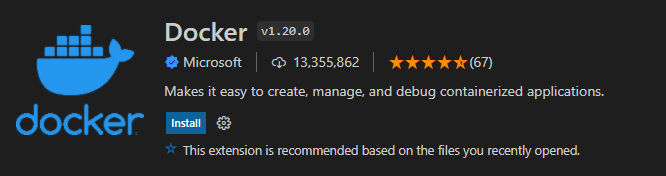
Now we need to load up the Docker container we created earlier. Navigate to the directory that you created the docker-compose.yml file in and run
docker-compose up -dThis should take a while as it has to download and set up the Ghost Docker image but after it says the website is finished loading you should be able to navigate in your browser to http://localhost:2368 or http://serverip:2368 depending on your setup. You should see a nice-looking blog template with all the images loaded properly. Then you can add /ghost to the end of your URL to access the admin dashboard.

Here it will prompt you to set up an account and parts of your blog. I’m not going to go too much more in-depth on that side of things as that is more up to the user but if you have everything up to here working we should be good to set up the GitHub pages integration.
Setting up Github Pages
Now that we have our local Ghost blog up and running, we want to set the static site will be generated and sent to Github Pages. The tool we will be using is called Ecto1. A big thanks to arktronic for making it and all of the useful documentation. To install it, we just run
git clone https://github.com/arktronic/ecto1Next, we need to prepare our git repository on our personal machine. To start, create a folder you want the repository to be in and initialize it.
mkdir ghost
cd ghost/
git init
Then move all of the files cloned from the ecto1 repository into your ghost folder. After that, we need to install the required dependencies to run ecto1.
pip install -r requirements.txt -t .In order for ecto1 to work, we are going to need to change a few things in the ecto1.py script
self.target_path_root = pathlib.Path(os.getcwd()) / 'docs'Change line 34 to this
print('Done. Contents have been downloaded into:', pathlib.Path(os.getcwd()) / 'docs')Change line 263 to this
Then we have to go online to Github and create a few things. Starting with the repository, create a repository with any name you like and copy the URL under the “code” dropdown.
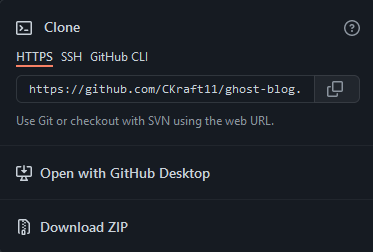
We want to add this repository as a remote repository location for git to push the files. We can do this by running
git remote add origin https://github.com/yourlinkhere.gitWe need to go back to Github and generate a personal access token that ecto1 can use when creating the site to push files to your repo. Go to this link here and create a new token with a name of your choice and give it repo permissions. Copy this link and keep it somewhere safe (e.g., not in your git repository folder). Next, we can run the following commands to test everything working.
touch test
git add .
git commit -m "first commit"
git push -u origin master
git config --global credential.helper store
When prompted for a username and password, use the token created earlier as your passcode.
You should see a test file in your Github repo and a commit message if all has gone well.
Set up Ecto1 with Github
Lastly, we need to set up a script to update Github with the latest version of the blog. Luckily, I have made a script for this, which is set up below
nano ghost-updater.shCreate a script in your git directory
#!/bin/bash
date=$(date)
git pull origin master
rm -r docs
mkdir docs
cd docs
echo "MYDOMAIN.com" > CNAME
cd -
ECTO1_SOURCE=http://SERVERIP:2368 ECTO1_TARGET=https://MYDOMAIN.com python3 ecto1.py
cd docs
docker cp ghost:/var/lib/ghost/content/images/. content/images
cd -
grep -lR "srcset" docs/ | xargs sed -i 's/srcset/thisisbuggedatm/g'
git add .
git commit -m "$date"
git config --global credential.helper store
git push -u origin master
Paste the following code into nano and then save and exit.
Also, I know there are some patchy solutions to some current bugs in Ecto1 in this script but I don’t really know how to code well enough to make a proper fork. If you are reading this it is probably still working.
sudo chmod +x ghost-updater.shMake the script executable
./ghost-updater.shRun the script
If all of this went successfully, you should have many files in your Github repo now. To set up Github pages, go to the Github pages tab in settings and select the master branch and /docs as your folder. You can set up a custom domain here as well. Just make sure it is the one you have been using in these scripts.
If your page is bugged out and only showing HTML elements and no CSS or Javascript, you likely put the wrong domain in the script above. If you don’t have a custom domain, the default should be https://github-username.github.io/you-repo-name.
If all of this has worked up till now, congratulations, you’re done! I hope this guide helped get you to that point.
If I made any mistakes in my guide or updates break the code, please open an issue.

















![Toni Kroos là ai? [ sự thật về tiểu sử đầy đủ Toni Kroos ]](https://evbn.org/wp-content/uploads/New-Project-6635-1671934592.jpg)


